

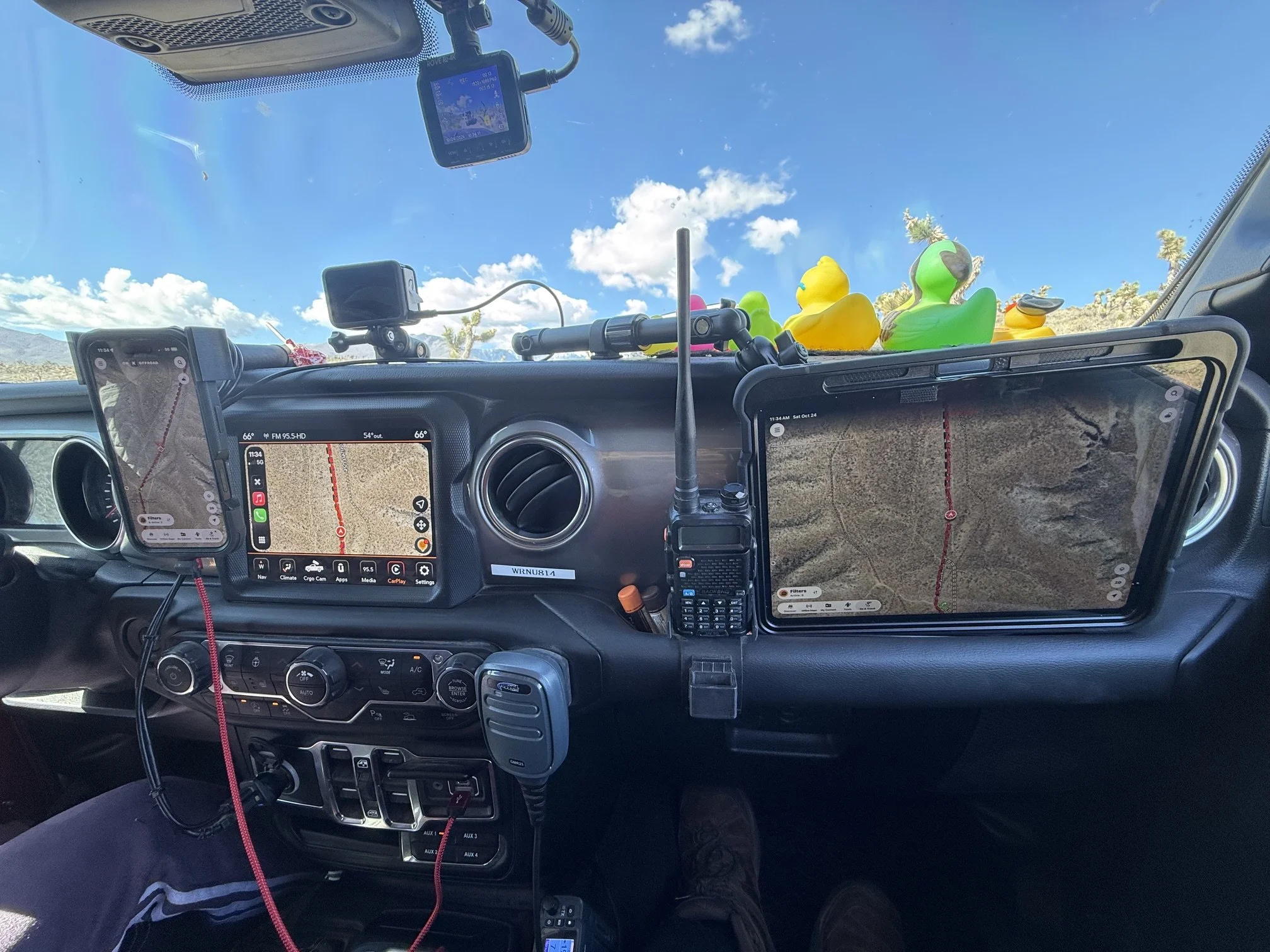
From left to right: iPhone in 67 Designs mount, GoPro, dashcam, Jeep U-connect dash screen showing iPhone, mobile GMRS radio, handheld GMRS walkie (for when outside of vehicle), and iPad stuck to Tackform magnetic mount.
written by Fred Ginsburg
After having downloaded a GPS navigation software program such as onX Offroad or GAIA, we need to make those trail guides readily visible to the driver and/or navigator (passenger).
Cell phones are the start. We run onX Offroad on both of our cell phones (under the same onX account) — mine as the primary and my wife’s as a backup. Her phone is usually tucked away, and mine is mounted on the dash so it is visible to driver and navigator.
Our “hands free” cell phone holder is from 67 Designs. However, you can also find excellent holders from Bullet Point and from Tackform. Good cell phone mounts are not super cheap; you get what you pay for. Avoid the flimsy ones that abound on the internet, and invest in something that is securely installed and was designed for your vehicle. Offroading entails a lot of bouncing and side to side jolts; the mounting system must be very solid and rigid.
The Jeep U-connect system offers Carplay (or Android Auto), which allows the onX program to display on the much larger dashboard display monitor. However, the U-connect system is notorious for often dropping its USB connection to the cell phone, especially during a bouncy section of trail. So having the cell phone screen easily visible is important, which is why we mount it redundant to the Jeep screen. When your U-connect does drop the signal, try unplugging the USB from the Jeep and re-inserting it. If that fails, then flick the cell phone display on and off.
Recently, I added an iPad to our cockpit. Navigating from the small screen of the cell phone made it difficult to look far ahead along the trail, unless you physically zoomed out and lost visual detail. I purchased a (refurbished) iPad online for fairly cheap. Since I wasn’t using the device as a “laptop for work/school” — I didn’t need a newly released state-of-the-art powerhouse computer. An online search on onX provided a list of suitable configurations. Make sure that the iPad is cellular equipped; you do not need an active cellular account/line such as for making calls, but the unit needs to be able to access the GPS signals. The specs will read: WiFi and Cellular capable; not just WiFi capable.
OnX allows you to install and sync as many devices as you own, under your one account. So just install the app onto all of your cell phones (including your spouses, as a backup) along with your desktop computer, laptops, and iPads. As long as you enter your personal log-in, all of your devices will reflect all of your content. The only catch is that your cell phones and iPads need to download (or refresh) any saved “off-line” maps. We make it part of our prep ritual to update all of our maps the night before a trail run.
Our iPad is held against the passenger side of the dash, using a Tackform magnetic mount. I did have to add a thin metal plate inside of the rubberized protective case, to provide better attraction for the magnet. The magnetic mount makes it easy for me to handhold the iPad in my lap if I need to scroll for information, especially while being tossed around. The iPad is not Carplay enabled, so don’t expect it to appear on the built-in Jeep display. (Besides, the display on the iPad is larger than the in-car display.)
Note: the Tackform mounting hardware is completely compatible with 67 Designs hardware, so you can mix & match the two systems. I cannot say if Tackform interchanges with Bullet Point (it might?).
